PESCO Online Bill Check October 2026
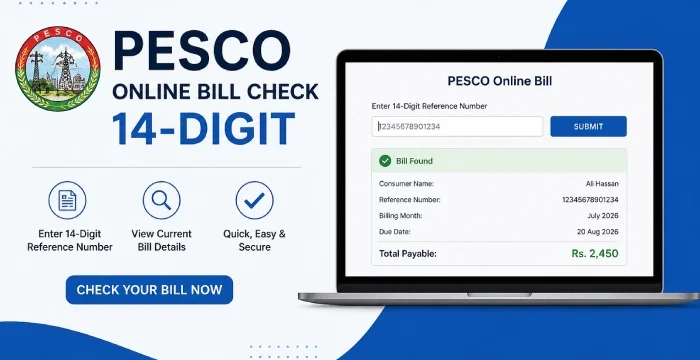
To check your PESCO bill online, enter your 14-digit reference number and click the Search Bill button to view and download your bill.
Enter the Customer ID printed on your bill.
This is the quickest method to check your bill online by just using the PESCO bill checker tool above. This doesn’t require any login, signup, or CAPTCHA.
How to Check Your PESCO Bill Online - 4 Easy Steps
Follow these easy steps to check or download your latest PESCO electricity bill:
- Find the 14-digit reference number on the top-left of a recent PESCO bill.
- Enter that number in the reference number box above.
- Click "Check Bill."
- Your current bill appears on screen with the amount, due date, and units used.
The bill is retrieved through the official PITC billing system used for, so what you see matches the paper copy exactly. by clicking PESCO Duplicate Bill Check Online, You can print it or save it as a PDF from there.
What is 14-digit Reference Number & Where to Find it
The 14-digit reference number consists of three parts, here is the full breakdown:
| Part | Digits | Meaning |
|---|---|---|
| Batch | 2 | Batch number |
| Sub-Division | 5 | Area/sub-division |
| Consumer | 7 | Consumer account |
Example: 01 26553 1294967
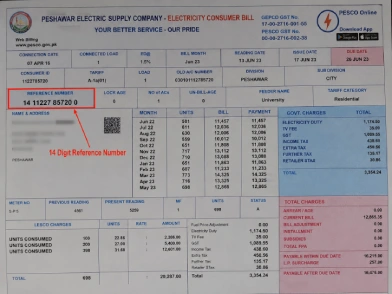
PESCO prints this number in the top-left corner of every bill, just under the company name. It stays the same every month for your connection, so once you've noted it down, you can use it to pull up any future bill without digging out the paper copy. PESCO's own website links its bill checker to a billing portal run by PITC, the IT arm that handles online billing for WAPDA's power companies.
See the image below to find your 14-digit reference number.
How to Download PESCO Duplicate Bill
- Enter your 14-digit reference number.
- Open your latest bill.
- Select the full bill/view bill option.
- Download or save the bill as PDF.
I Lost My PESCO Bill What Should I Do?
- Check an older bill
- Ask the person who receives the bill
- Contact PESCO customer support
- Don't enter a random number
- Don't use CNIC/name unless an official system specifically supports it
If you've lost your old bill entirely, your local PESCO customer services centre can read the number back to you from your meter details.
No Reference Number? Try Your Customer ID
If you can't find the 14-digit reference number, your PESCO bill also carries a 10-digit customer ID, usually printed near it on the same bill. Either number points to the same connection, so it works just as well. One thing to keep in mind: you can't check a PESCO bill using just your name, CNIC, address, or meter number. The reference number or customer ID is required.
Getting Your Bill by Email or SMS
Instead of checking the website every month, PESCO also offers an e-billing option that sends your bill straight to your inbox or phone. It's set up through the same billing portal, using your reference number along with your email address or mobile number. Once that's done, you'll get an alert each time a new bill is generated, so you don't have to remember to check.
If the Check Doesn't Go Through
A few things usually cause this. Double-check every digit of your reference number, since one wrong digit stops the search. If the site feels slow, wait a bit and try again, or clear your browser cache. If your bill was only generated a few hours ago, it may not have loaded into the system yet, so check back later. Still stuck? You can reach PESCO through their online complaint portal, by calling 118, or by sending an SMS to 8118.
What is PESCO?
Peshawar Electric Supply Company, known as PESCO, supplies electricity to homes, shops, and factories across Khyber Pakhtunkhwa. The company was set up in 1998 after WAPDA's power wing was split into separate regional companies.
PESCO now serves more than 3.74 million consumers, based on the company's own figures. It runs the wires, poles, and grid stations that carry electricity from the national grid into your meter. This covers everything from the big 132 kV grid stations down to the small 440-volt lines that reach individual homes.
Head office: Peshawar, Khyber Pakhtunkhwa
Consumers served: Over 3.74 million
Network: 132 kV, 66 kV, and 33 kV grid stations, plus 11 kV and 440-volt lines that connect directly to consumers
Which Areas Does PESCO Cover?
PESCO's network is split into seven circles. Each circle covers a group of districts
| Circle | Districts Covered |
|---|---|
| Peshawar | Peshawar, Charsadda, Nowshera |
| Mardan | Mardan |
| Swabi | Swabi |
| Swat | Swat, Buner, Shangla, Lower Dir, Upper Dir, Malakand |
| Bannu | Bannu, Lakki Marwat, North Waziristan |
| DI Khan | Dera Ismail Khan, Tank, South Waziristan Upper, South Waziristan Lower |
| Khyber | Bajaur, Mohmand, Khyber, Kurram, Orakzai |
One point worth knowing: Hazara division (Abbottabad, Haripur, Mansehra, Battagram, Kohistan, and Torghar) is no longer part of PESCO. The government carved this region out into its own company, Hazara Electric Supply Company (HAZECO), back in January 2023. If your bill is for a Hazara district, you need the HAZECO checker, not PESCO's.
PESCO Peak Hours: When to Avoid Using Heavy Appliances
Electricity costs more to supply during certain evening hours, when demand across the whole grid is at its highest. Distribution companies call this the peak hour window. Running your air conditioner, iron, or washing machine outside this window puts less load on the system and can lower your bill.
| Season | Peak Hours |
|---|---|
| December – February | 5:00 PM – 9:00 PM |
| March – May | 6:00 PM – 10:00 PM |
| June – August | 7:00 PM – 11:00 PM |
| September – November | 6:00 PM – 10:00 PM |
This schedule applies to three-phase Time of Use meters, the kind found mostly in commercial and industrial connections. Most home meters run on a simple slab system instead, where the bill depends only on total units used, not the time you use them.
Even so, cutting down on heavy appliance use during these hours helps the grid, and it's a good habit if your area has an older or shared transformer that struggles under high load.
Understanding the Charges on Your PESCO Bill
Your PESCO bill is never just the price of the electricity you used. A few government charges and company fees get added on top. Here's what each one means.
Electricity Duty (ED)
A provincial tax added to your consumption. The rate depends on your consumer category, set by the provincial government.
General Sales Tax (GST)
A standard government tax charged on top of your electricity use. PESCO collects it on the government's behalf.
Further Tax (FT)
This applies to commercial or industrial consumers who aren't registered with FBR for sales tax purposes.
PTV Fee
A fixed amount collected with your bill under a government notification, unrelated to how much electricity you used.
Fuel Price Adjustment (FPA)
This charge moves up or down depending on the cost of fuel used to generate electricity that month. It's decided by NEPRA, not by PESCO.
Quarterly Tariff Adjustment (QTA)
Added when NEPRA revises the base electricity tariff after reviewing generation and distribution costs. It usually shows up for a set period, then disappears.
Financing Cost (FC) Surcharge
A charge meant to help recover financing costs tied to Pakistan's power sector debt.
Deferred Amount
If part of your bill is marked deferred, you can pay that portion later without your connection getting cut, based on the terms printed on the bill.
Arrears
Any unpaid balance from earlier months. This gets added to your current bill until it's cleared.
FAQs
Is checking my PESCO bill online free?
Yes. Viewing, printing, or saving your PESCO bill online costs nothing. You only pay the actual bill amount, through a bank, mobile wallet, or payment counter.
Where exactly is the reference number on my bill?
In the top-left corner, printed just under the company name and logo.
Can I check my bill using my CNIC or name instead?
No. You need either the 14-digit reference number or the 10-digit customer ID.
Does the reference number change every month?
No. It stays fixed for your connection, so the same number works for every bill going forward.
What if my bill shows the wrong reading or amount?
Report it to your local PESCO office with your reference number, or lodge a complaint online, so they can correct it.
Sources:



Thanks for this guide
Very useful for people who lose their paper bill.
Mere ghar mein old bills sambhal ke rakhna mushkil hota hai, online option better hai.